

Saving snapshots locally
With Snapshots, you can save the state of your LocalStack instance to a file on disk, then load it back at a later time. This concept is similar to that of desktop-based word processors, spreadsheets, or practically any software that allows saving and loading the program state.
Loading a snapshot is significantly faster, and far more convenient, than re-creating the same state with infrastructure-as-code tools such as Terraform or CDK, or re-running deployment scripts by hand. Additionally, the dynamic state of those resources (such as database content) is automatically captured, avoiding the need for data-seeding scripts to populate them.
Using the lstk CLI
Section titled “Using the lstk CLI”The lstk CLI lets you save your instance’s state to a local file and load it back into another instance at a later time.
For example, starting from an empty emulator instance, create an S3 bucket, an SNS topic, and an SQS queue:
lstk startlstk aws s3 mb s3://bucket1lstk aws sns create-topic --name topic1lstk aws sqs create-queue --queue-name queue-1The lstk status command confirms that the three resources are deployed:
lstk status✔︎ LocalStack AWS Emulator is running• Endpoint: localhost.localstack.cloud:4566• Container: localstack-aws-dev• Version: 2026.8.0• Uptime: 17s~ 3 resources · 3 services SERVICE RESOURCE REGION ACCOUNT S3 bucket1 global 000000000000 SNS topic1 us-east-1 000000000000 SQS http://sqs.us-east-1.localhost.localstack.cloud:4566/000000000000/queue-1 us-east-1 000000000000To save the state to a local file, run:
lstk snapshot save my-snapshot✔︎ Snapshot saved to ./my-snapshot.snapshot• Services: sns, sqs, s3• Size: 85.4 KBThe destination argument is optional.
If you omit it, lstk auto-generates a timestamped snapshot file in the current directory:
lstk snapshot save✔︎ Snapshot saved to ./snapshot-2026-08-04T20-16-49-5e3.snapshot• Services: sns, sqs, s3• Size: 85.4 KBSince saving is a common operation, the lstk save abbreviation is also available:
lstk save✔︎ Snapshot saved to ./snapshot-2026-08-04T20-16-49-db4.snapshot• Services: sns, sqs, s3• Size: 85.4 KBRestarting the emulator discards all of its state, so lstk status now reports that no resources are deployed:
lstk restartlstk status✔︎ LocalStack AWS Emulator is running• Endpoint: localhost.localstack.cloud:4566• Container: localstack-aws-dev• Version: 2026.8.0• Uptime: 5s> Note: No resources deployedTo load a previously saved snapshot, run:
lstk snapshot load my-snapshot✔︎ Snapshot loaded from ./my-snapshot.snapshotAlternatively, the lstk load command is also available:
lstk load my-snapshot✔︎ Snapshot loaded from ./my-snapshot.snapshotRunning lstk status once more confirms that the bucket, topic, and queue have returned:
lstk status✔︎ LocalStack AWS Emulator is running• Endpoint: localhost.localstack.cloud:4566• Container: localstack-aws-dev• Version: 2026.8.0• Uptime: 6s~ 3 resources · 3 services SERVICE RESOURCE REGION ACCOUNT S3 bucket1 global 000000000000 SNS topic1 us-east-1 000000000000 SQS http://sqs.us-east-1.localhost.localstack.cloud:4566/000000000000/queue-1 us-east-1 000000000000Using the LocalStack Console
Section titled “Using the LocalStack Console”The LocalStack Console allows saving a snapshot to a file, then loading it into another LocalStack instance.
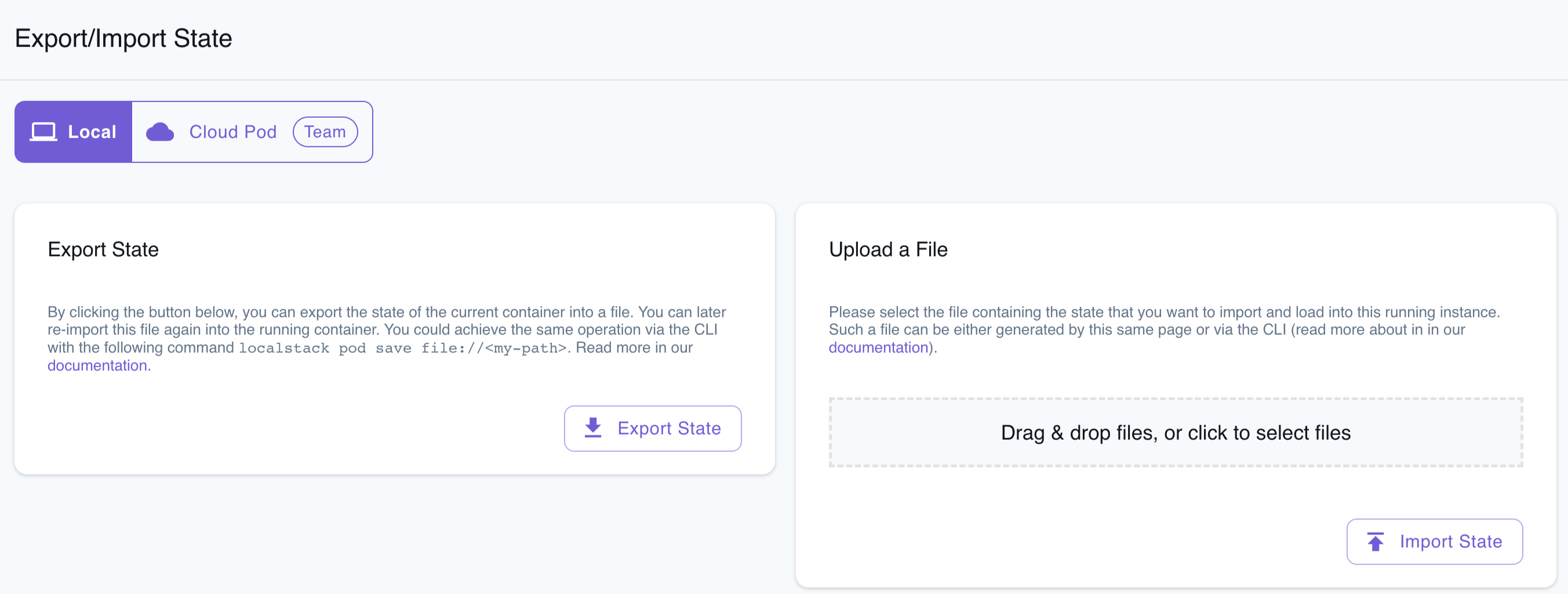
To save the snapshot, follow these steps:
- Create AWS resources locally as needed.
- Navigate to the Local tab within the Export/Import State page.
- Click on the Export State button. This action will initiate the download of a ZIP file.
The downloaded ZIP file contains your container state, which can be injected into another LocalStack instance for further use.
To load an existing snapshot, follow these steps:
- Navigate to the Local tab within the Export/Import State page.
- Upload the ZIP file that contains your container state. This action will restore your previously saved AWS resources.
To confirm the successful injection of the container state, visit the respective Resource Browser for the services and verify the resources.